Remote Session Setup Guide
A step-by-step guide to setting up low-latency remote recording, mixing and collaboration sessions with AudioTeleporter.
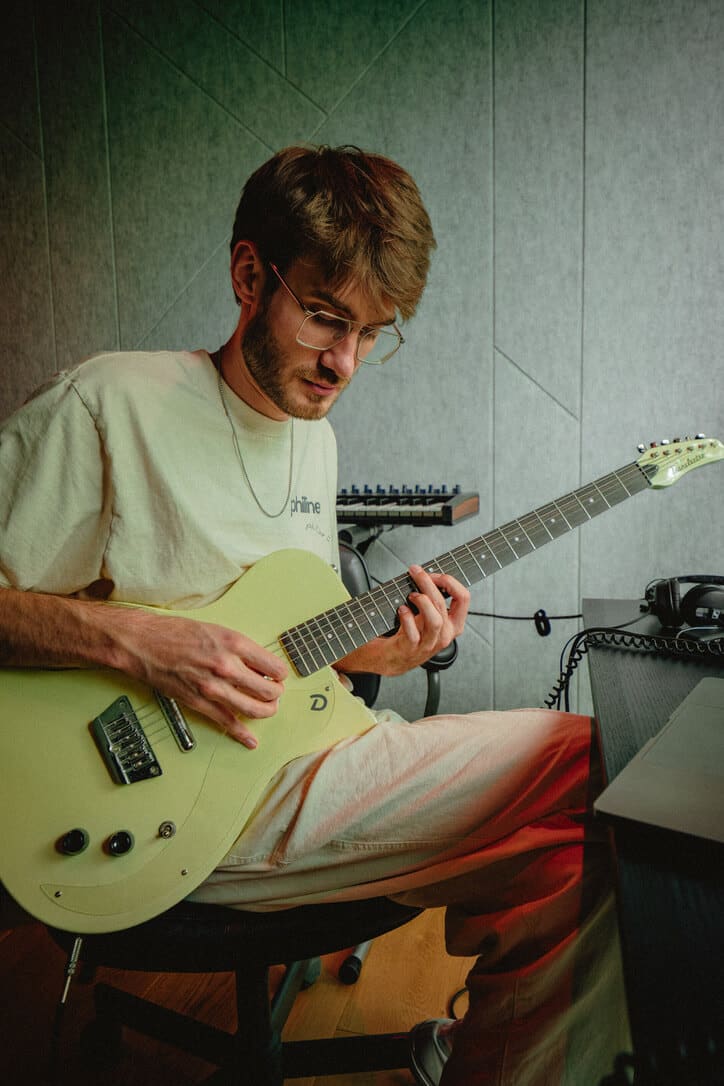
Remote sessions with AudioTeleporter work best when you prepare the setup before anyone joins. This guide goes from network prep to inviting collaborators to checking what they hear.
Before you start
Make sure you have:
- A stable internet connection
- AudioTeleporter installed: visit the download page for the latest version
- An ArnieWaves account: the free tier is enough for a basic remote session
- Headphones or speakers: for monitoring what listeners hear
- A wired Ethernet connection: if possible, for more stable bandwidth
Step 1: Put AudioTeleporter in the right place
Where AudioTeleporter sits in your DAW's signal chain decides what your listeners hear. Insert it as the last plugin on your master bus, so it captures your final mix, including all processing from other plugins and the master fader.
AudioTeleporter sends one stereo stream, so it belongs on whichever bus you want your listener to hear. If that is a single stem rather than the full mix, put it on that bus instead of the master.
Step 2: Configure your audio settings
Open AudioTeleporter's plugin settings and select your streaming quality:
- Free tier: Opus at 64 kbps, fine for quick feedback and demo sessions
- Basic (€3.99/mo): Opus at 256 kbps, good enough for most professional sessions
- Pro (€5.99/mo): Lossless audio with nothing thrown away, for when someone is judging a mix or a master
- Perpetual (from €99.00, once): Basic or Pro paid one time instead of monthly, no renewal, same audio
Set your buffer size to 256 samples or lower if your system allows; this reduces latency. Monitor your CPU usage; if it spikes above 80%, increase the buffer to 512 samples.
Step 3: Set up your monitoring
Before inviting listeners, do a test run. Log in to AudioTeleporter inside your plugin, then open a second browser window and join your own session as a listener. That way you hear what your remote collaborators will hear, with the codec and the network delay included.
Check for sync issues by playing a known click track or reference. You should hear the audio arrive with minimal delay (typically under 300ms on a good connection). If latency is noticeable, try switching to a wired Ethernet connection or closing bandwidth-heavy applications.
Step 4: Invite your collaborators
When you're ready, AudioTeleporter gives you a unique listener link. Send it to your collaborators by email, Slack or whatever you already use. They don't install anything; they open it in the browser on whatever device they have (Mac, Windows, iPad, phone).
Tell people roughly how long the session will run. Listeners can join and leave anytime, but when timing matters (a vocal session, say), give them a 5-10 minute heads-up before you start rolling.
Step 5: Set up a channel for feedback
AudioTeleporter only sends audio one way, so listeners need another way to reach you. Have a video call running in the background (or a Discord/Zoom audio channel) so you can discuss takes and changes in real time. Assign one person (usually the producer or engineer) to drive DAW decisions while others listen and comment.
For a vocal session, use AudioTeleporter's Basic tier or higher so singers hear themselves clearly. With less compression they can judge their own pitch and tone.
Step 6: Recording and archiving
AudioTeleporter streams in real time but doesn't record on our servers. To keep a record of your session, use your DAW's built-in recording or external tools like OBS to capture the audio output. That gives you a full copy of what was streamed, to come back to for review and revisions later.
You can also ask your listeners to record their own playback; each of them captures the session as their browser heard it, which gives you a backup.
Tips for remote sessions
- Start with a test session. Run through a 5-minute session solo to check latency, audio quality, and your headphone mix before inviting others.
- Use lossless for critical work. If you're recording vocals, mixing, or mastering, spring for the Pro tier. Compressed audio makes it hard to hear detail.
- Keep your DAW CPU load low. Close other applications (email, browsers, video apps) to reduce latency and prevent audio glitches.
- Agree on a click/reference beforehand. Send a guide vocal or reference mix to your collaborators 24 hours in advance so they know what to listen for.
- Schedule sessions during off-peak internet hours. If possible, avoid prime-time evening hours when residential internet is congested.
- Use a hardware audio interface. Built-in audio can introduce unwanted noise; a dedicated interface gives you cleaner monitoring and lower latency.
Troubleshooting common issues
High latency or stuttering? Check your upload speed at speedtest.net. If it's below 10 Mbps, downgrade to Basic or free tier for now. Restart your router and close bandwidth hogs.
Listeners can't hear audio? Verify AudioTeleporter is on your master bus (not muted), and that you've hit the "Start Streaming" button in the plugin. Check that the listener link is active in your account.
Out of sync with collaborators? Small timing differences are normal. Use a click track as a reference. If delays are severe (over 500ms), it's usually a network issue, so suggest moving to Ethernet.
Audio quality sounds compressed? You might be on the Free or Basic tier. Upgrade to Pro for lossless streaming, or reduce the number of active listeners to free up bandwidth.
Your first session
To run your first remote session, install AudioTeleporter and create your account. When you've tried it, send me feedback on how the session went.